Getting started (non-technical)
You do not need Node.js or a build tool to try WebRec. Follow these steps on your computer:
- Unzip the download. You should see folders like
assets/sdk/,assets/libraries/,examples/, and files such asindex.html(landing) andstudio.html. - Open the folder with a local web server (Laragon, XAMPP, VS Code Live Server, or
npx serve). Browsers block screen recording on plainfile://pages. - Visit Studio (
studio.html) over http://localhost or HTTPS. - Click Record, choose Screen / Window / Tab in the browser picker, then use Pause / Stop when finished.
- Use Download WebM to save the original file, or Download MP4 to convert and save an MP4.
Recording workflow
How a typical session moves from click to saved video:
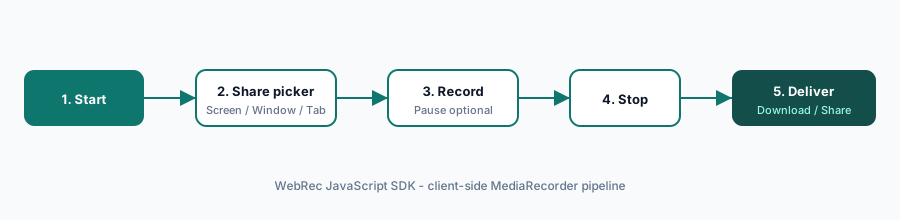
docs/images/workflow-diagram.svg — included in the download package.)- Start — your page calls
recorder.start()(or the user clicks Record in Studio). - Share picker — the browser asks the user what to share (screen, window, or tab).
- Countdown (optional) — if
countdown > 0, wait after the picker; with float / Document PiP enabled the digits appear on the float bar, not on the page being recorded. - Record — MediaRecorder writes chunks; floating controls stay available.
- Stop — a Blob + object URL are returned on the
stopevent. - Deliver — Download WebM, Download MP4, Web Share, upload hook, or your own storage.
Studio & floating toolbar tour
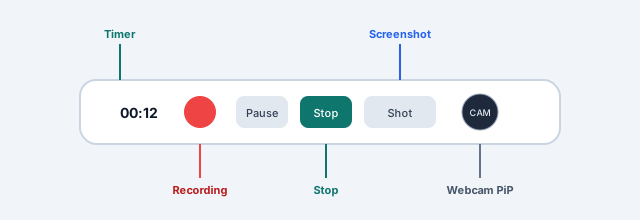
Studio (studio.html) is the flagship demo. The floating toolbar appears while a capture is active.
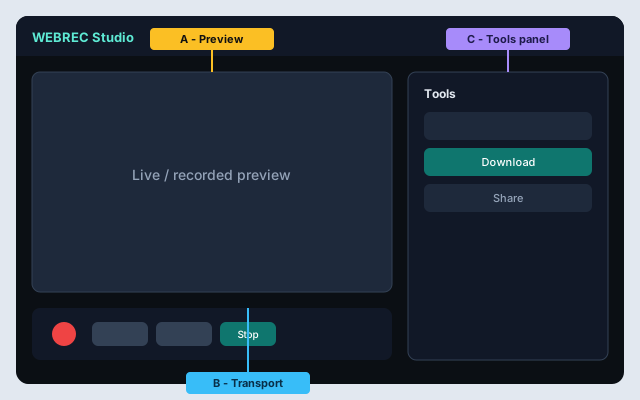
- Quality → Container — Studio defaults to WebM (most reliable in Chrome). You can ask for MP4 while recording when the browser supports it.
- Capture → Start after — optional countdown after the share picker. With Float bar on, the timer shows in the floating controls (outside the captured tab/window), so it is not baked into the recording or thumbnails. Screenshots are disabled until recording starts.
- Tools → Download WebM — saves the original recording as-is.
- Tools → Download MP4 — converts WebM → MP4 in the browser using bundled FFmpeg.wasm (see
assets/libraries/ffmpeg/core/README.md). First click may take a few seconds while the converter loads.
Tip: open Studio, start a short recording, and capture your own screenshots for marketing — see ../seller/SCREENSHOTS.md for Envato size rules.
Download & MP4 convert
Most browsers record WebM. Many buyers want an MP4 file for sharing and editing. Studio makes that a one-click step after you stop:
- Record (WebM by default).
- Click Download MP4.
- Wait for convert (progress shows on the button), then the
.mp4downloads.
Converter files are self-hosted under assets/libraries/ffmpeg/ (no CDN). Studio loads them via
assets/js/convert-to-mp4.js only when you click Download MP4.
// Same idea in your own page (ES module):
import { convertBlobToMp4 } from './assets/js/convert-to-mp4.js';

recorder.on('stop', async ({ blob }) => {
  const mp4 = await convertBlobToMp4(blob);
  WebRec.downloadBlob(mp4, 'recording.mp4');
});
Plugin API (optional): WebRec.FFmpegConvert({ coreURL, wasmURL }) adds recorder.convert() —
point paths at assets/libraries/ffmpeg/core/ffmpeg-core.js and .wasm. See
example 32 and CREDITS.md.
Quick start (code)
Serve over HTTPS or localhost, then:
<link rel="stylesheet" href="assets/sdk/webrec.css">
<script src="assets/sdk/webrec.umd.js"></script>
<script>
  const recorder = new WebRec.ScreenCapture({ theme: 'light' });
  recorder.on('stop', ({ blob, url }) => console.log(blob));
  recorder.start();
</script>
Installation
- Copy
assets/sdk/into your project (andassets/libraries/only if you want Studio/docs styling assets such as Bootstrap). - Include CSS + UMD (or ESM) on an HTTPS / localhost page — no CDN and no Node.js build step.
- Create
new WebRec.ScreenCapture(), callstart(), listen forstop. - Call
destroy()when your page or component unmounts.
- ESM:
import ScreenCapture from './assets/sdk/webrec.esm.js' - Types:
assets/sdk/webrec.d.ts - Try everything: open Studio (
studio.html)
Use cases & guidelines
WebRec records what the user shares via the browser picker
(getDisplayMedia) and writes a client-side Blob with MediaRecorder.
It is not a Zoom replacement, not a hosted cloud recorder, and not a native mobile SDK.
Serve over HTTPS or localhost.
Naming (UMD vs ESM)
- UMD:
new WebRec.ScreenCapture({…})— helpers likeWebRec.downloadBlob,WebRec.ChunkUploader. - ESM:
import ScreenCapture from './assets/sdk/webrec.esm.js'thennew ScreenCapture({…}); named exports match the UMD API.
Recipe matrix
| Goal | Recommended setup | Examples |
|---|---|---|
| Tutoring / courses (face + screen) | Mic on; webcam PiP; set camera.includeInRecording: true when the face should appear in the export; persistChunks: true |
02, 03, 15 |
| Support / bug report | preferCurrentTab: true or displaySurface: 'browser'; mic on; optional ChunkUploader or download |
24, 16, 25 |
| SaaS in-app recorder | ui: false + your chrome; controlsPiP: true when capturing another window; always destroy() on unmount |
10, 33, 30, 27 |
| LMS / marketing clips | Quality + MIME fallback; ThumbnailPlugin; Studio Download MP4 (bundled FFmpeg) or FFmpegConvert |
04, 12, 14, 32 |
| Long / crash-prone sessions | persistChunks: true, smaller timeslice (e.g. 500), recover UI on page load |
15 |
| Privacy-minded capture | excludeMonitorSurfaces: true; prefer tab; tell users they control the share picker |
24 + Options |
| Accessible UI | Keep shortcuts: true; don’t rely on float bar alone |
08, 29 |
Decision guidelines
- Tab vs window vs entire screen — the user chooses in the picker. Entire Screen can include your float popup; Document PiP stays on top but may not appear in the recording the same way.
- Slim float vs Keep on top — default slim popup is predictable sizing; Document PiP (
toolbar.preferDocumentPiP: true) is for agents who Alt-Tab and still need controls (Chrome/Edge). - Webcam overlay vs burn-in — PiP bubble is preview/UI; set
includeInRecording: trueonly when the camera should be composited into the exported video. - Download vs share vs upload vs recovery — local
download()needs no server; Studio Download MP4 converts WebM→MP4 in-browser;share()uses the browser Web Share sheet when available;ChunkUploaderstreams chunks to your API; IndexedDB recovers crashes without a server. - Bundled libraries & peers — lightGallery + FFmpeg.wasm (for Studio MP4) ship under
assets/libraries/. WaveSurfer remains optional/not required. All free & open-source — see CREDITS.md. - Frameworks — create the recorder in mount, call
destroy()on unmount (see example 30). Multiple instances are supported (example 28).
What users can / cannot record
Browsers may block or limit protected content (some DRM video, other apps’ audio, OS surfaces).
Always handle PERMISSION_DENIED / cancel gracefully. Chrome/Edge offer the best system-audio + Document PiP support — see Browser support.
Core API
const recorder = new WebRec.ScreenCapture({
  ui: 'vanilla',           // 'vanilla' | 'bootstrap' | false
  theme: 'light',
  video: { frameRate: 30, width: 1920, height: 1080, bitrate: 2500000 },
  audio: { microphone: true, systemAudio: true, bitrate: 128000 },
  camera: { enabled: false, mirrored: true, includeInRecording: false },
  mimeType: 'video/webm;codecs=vp9,opus', // preferred; SDK falls back automatically (MP4 also supported)
  timeslice: 1000,         // MediaRecorder chunk interval (ms)
  persistChunks: true,     // IndexedDB crash recovery
  shortcuts: true,
  preferCurrentTab: false,
  displaySurface: undefined, // 'monitor' | 'window' | 'browser' (hint)
  excludeMonitorSurfaces: false,
  controlsPiP: false,
  countdown: 0,            // seconds after share picker before capture starts (0 = immediate)
  toolbar: { preferDocumentPiP: false },
  previewOnStop: true
});

await recorder.start();
recorder.pause();
recorder.resume();
await recorder.stop();
recorder.cancel();
await recorder.restart();
await recorder.screenshot();
await recorder.extractFrames({ fps: 1, maxFrames: 24 });
recorder.openFrameGallery(0);
recorder.openScreenshotGallery(0);
await recorder.openControlsPiP();
recorder.closeControlsPiP();
recorder.download('take.webm');
await recorder.share({ title: 'My recording' }); // Web Share when available
recorder.destroy();

WebRec.ScreenCapture.isSupported();
WebRec.ScreenCapture.getCapabilities();
WebRec.ScreenCapture.checkMimeType('video/webm;codecs=vp9,opus');
Full reference: API reference · Studio · Examples
Options (video, audio, camera, surface)
Pass options to the constructor or setOptions() / start(override).
- video —
frameRate,width,height,bitrate(bits/sec for MediaRecorder). - audio —
microphone,systemAudio,deviceId,echoCancellation,noiseSuppression,bitrate. - camera —
enabled,width/height,deviceId,mirrored,includeInRecording(composite webcam into the recorded video when true). - mimeType — preferred container/codecs; use
checkMimeType()first. Omit to let the SDK pick a supported fallback. - countdown — seconds to wait after the share picker before MediaRecorder starts (
0= immediate). Studio: Capture → Start after. With float controls / Document PiP, the countdown UI is shown on the float bar (outside tab/window capture) so it is not recorded; screenshots are blocked until recording starts. - timeslice — chunk size in ms for
dataavailable/ IndexedDB / upload plugins (e.g.1000). - preferCurrentTab — Chrome hint to preselect the current tab in the share picker.
- displaySurface — hint:
'monitor','window', or'browser'. - excludeMonitorSurfaces — hide Entire Screen in the picker (when the browser supports it).
// Prefer recording this tab only (Chrome)
const tabRec = new WebRec.ScreenCapture({
  preferCurrentTab: true,
  audio: { systemAudio: true, microphone: false }
});

// Webcam PiP overlay + optional burn-in
const camRec = new WebRec.ScreenCapture({
  camera: {
    enabled: true,
    mirrored: true,
    width: 320,
    height: 240,
    includeInRecording: true
  }
});

// Force a MIME when supported
const checked = WebRec.ScreenCapture.checkMimeType('video/webm;codecs=vp9,opus');
const hiBitrate = new WebRec.ScreenCapture({
  mimeType: checked.mimeType,
  video: { frameRate: 30, bitrate: 5000000 },
  timeslice: 500
});
Demos: 24-prefer-current-tab, 12-mime-fallback, 03-webcam-pip
Floating controls
Set controlsPiP: true to open a floating toolbar when recording starts
(or call openControlsPiP()).
- Default — slim popup: window is sized to the toolbar strip. Included in Entire Screen recordings. May go behind other apps when you Alt-Tab.
- Keep on top — Document PiP: set
toolbar.preferDocumentPiP: true(Chrome/Edge). Stays above other windows. Chrome may reopen a tall remembered size; click Click to make slim on the PiP if needed.
const recorder = new WebRec.ScreenCapture({
  ui: false,
  controlsPiP: true,
  toolbar: { preferDocumentPiP: false }, // slim by default
  excludeMonitorSurfaces: false          // allow Entire Screen so controls can appear in the video
});Frames, screenshots & gallery
After stop(), sample frames from the recording; during capture, take live screenshots of the
display stream (useful while recording another window via the Float bar camera or Alt+S).
Both open in a lightGallery lightbox, bundled and self-hosted under its free, open-source GPLv3 license — no extra commercial license required.
1) The gallery library is already bundled and self-hosted. After extract / screenshot:
recorder.openFrameGallery(0);
// or recorder.openScreenshotGallery(0);
2) Record, then open the galleries:
const recorder = new WebRec.ScreenCapture({
  theme: 'dark',
  audio: { microphone: true, systemAudio: true }
});

// Live screenshots while recording (display stream)
recorder.on('start', async () => {
  // Float bar camera / Alt+S also call screenshot()
  // await recorder.screenshot();
});

recorder.on('stop', async () => {
  // Frames from the finished recording
  const frames = await recorder.extractFrames({
    start: 0,
    end: 10,
    fps: 1,
    maxFrames: 24,
    width: 960
  });
  recorder.openFrameGallery(0);
});

await recorder.start();
// … later …
// await recorder.stop();

// Screenshots collected during the session
recorder.openScreenshotGallery(0);
// recorder.clearScreenshots();
Demos: examples/34-frame-gallery.html, examples/13-screenshot.html · Studio Tools tab
Crash recovery (IndexedDB)
With persistChunks: true (default), each MediaRecorder chunk is stored under the IndexedDB name
webrec. If the tab crashes mid-record, list sessions and rebuild a Blob.
const recorder = new WebRec.ScreenCapture({
  persistChunks: true,
  timeslice: 500,
  previewOnStop: false
});

recorder.on('recover', (info) => console.log('recovered', info));

const sessions = await recorder.listRecoverableSessions();
// [{ sessionId, mimeType, startedAt, status }, ...]

const recovered = await recorder.recover(sessions[0].sessionId);
if (recovered) {
  videoEl.src = recovered.url; // also: recovered.blob, recovered.mimeType
}

await recorder.clearRecovery();          // all sessions
// await recorder.clearRecovery(sessionId); // one sessionError handling
Failures raise or emit WebRec.ScreenCaptureError with a stable code.
Always listen for error and handle rejected start() / stop() promises.
const recorder = new WebRec.ScreenCapture();

recorder.on('error', (err) => {
  console.error(err.code, err.message);
  // PERMISSION_DENIED | UNSUPPORTED | UNSUPPORTED_MIME | INVALID_STATE |
  // DEVICE_NOT_FOUND | NOT_SECURE_CONTEXT | RECORDING_FAILED |
  // STORAGE_ERROR | CANCELLED | UNKNOWN
});

recorder.on('warning', (msg) => console.warn(msg));

try {
  await recorder.start();
} catch (err) {
  const e = WebRec.normalizeError(err);
  alert(e.message);
}Streams & live preview
While recording (or after stop for preview helpers):
const display = recorder.getDisplayStream(); // raw getDisplayMedia stream
const mixed = recorder.getMixedStream();     // display + mic/camera mix used by MediaRecorder
if (mixed) previewVideo.srcObject = mixed;

// In-progress snapshot as object URL (duration so far)
const preview = await recorder.getPreview();
// { url, blob, duration }
Events
| Event | Payload / use |
|---|---|
start / pause / resume / cancel / destroy | Lifecycle |
countdown:start / countdown / countdown:end / countdown:cancel | Pre-record delay after share picker ({ remaining, total }) |
stop | { blob, url, duration, mimeType, size, … } |
progress | Elapsed time / size updates while recording |
chunk | Each MediaRecorder chunk ({ blob, index, size }) |
error / warning / info | Diagnostics |
screenshot / screenshots | Live capture + list updates |
thumbnail / frames | Poster / extracted frames |
controls:pip | Float bar open/close state |
share | Web Share sheet used successfully |
recover | IndexedDB recovery |
plugin:install | Plugin installed |
Plugins
Install with await recorder.use(…). Built-ins live on the WebRec global (UMD) or named ESM exports.
// Upload each chunk to your server (optional)
await recorder.use(WebRec.ChunkUploader({
  concurrency: 2,
  upload: async (chunk, ctx) => {
    await fetch('/upload', {
      method: 'POST',
      headers: { 'X-Chunk-Index': String(chunk.index) },
      body: chunk.blob
    });
  }
}));

// Auto thumbnail on stop
await recorder.use(WebRec.ThumbnailPlugin({ auto: true, width: 320 }));

// Client-side trim via MediaRecorder re-encode
const trimmer = WebRec.Trimmer();
await recorder.use(trimmer);
recorder.on('stop', async ({ blob }) => {
  const cut = await recorder.trim(blob, { start: 1, end: 10 });
  WebRec.downloadBlob(cut, 'trimmed.webm');
});

// Waveform (peer: load wavesurfer from assets/libraries/ first)
await recorder.use(WebRec.WaveformPlugin({
  container: '#wave',
  height: 64,
  waveColor: '#6c757d',
  progressColor: '#0d6efd'
}));

// FFmpeg.wasm convert — local files under assets/libraries/ffmpeg/ (no CDN)
await recorder.use(WebRec.FFmpegConvert({
  coreURL: './assets/libraries/ffmpeg/core/ffmpeg-core.js',
  wasmURL: './assets/libraries/ffmpeg/core/ffmpeg-core.wasm'
}));
// const mp4 = await recorder.convert(blob, { outputName: 'out.mp4' });
// Studio also offers one-click Download MP4 via assets/js/convert-to-mp4.js

// Keyboard shortcuts plugin (also enabled via shortcuts: true)
await recorder.use(WebRec.KeyboardShortcuts());
Demos: chunk upload, trimmer, waveform, ffmpeg
Keyboard shortcuts
Enabled by default with shortcuts: true (installs WebRec.KeyboardShortcuts()).
| Shortcut | Action |
|---|---|
| Alt+R | Start / stop |
| Alt+P | Pause / resume |
| Alt+C | Cancel |
| Alt+S | Screenshot (display stream) |
await recorder.use(WebRec.KeyboardShortcuts({
  startStop: { altKey: true, key: 'r' },
  pauseResume: { altKey: true, key: 'p' },
  cancel: { altKey: true, key: 'c' },
  screenshot: { altKey: true, key: 's' }
}));Custom plugin hooks
Any object with a name and lifecycle hooks can be installed via recorder.use(plugin):
install/uninstallbeforeStart/afterStoponChunk— each MediaRecorder chunkonPause/onResume/onCancel/onError
await recorder.use({
  name: 'my-analytics',
  beforeStart() { console.log('picker opening…'); },
  onChunk(_ctx, chunk) { /* chunk.blob, chunk.index */ },
  afterStop(_ctx, result) { console.log(result.size); }
});

// Upload sketch (your auth headers)
await recorder.use(WebRec.ChunkUploader({
  concurrency: 2,
  upload: async (chunk) => {
    await fetch('/api/chunks', {
      method: 'POST',
      headers: {
        'Authorization': 'Bearer ' + token,
        'X-Chunk-Index': String(chunk.index)
      },
      body: chunk.blob
    });
  }
}));
Demos: 17-custom-plugin, 16-chunk-uploader
UI helpers
BootstrapUI is optional (docs/demos). When ui: 'bootstrap', the SDK can mount Bootstrap-styled controls;
you can also build settings forms yourself:
const recorder = new WebRec.ScreenCapture({ ui: false });
const form = document.querySelector('#settings');
form.innerHTML = WebRec.BootstrapUI.settingsFormHtml(recorder.config);
form.addEventListener('change', () => {
  recorder.setOptions(WebRec.BootstrapUI.readSettingsForm(form));
});

const ui = new WebRec.BootstrapUI({ theme: 'light' });
ui.toast('Recording saved', 'success');

const { audioInputs, videoInputs } = await WebRec.MediaEngine.listDevices();Optional peers & licenses (plain English)
Think of WebRec in three layers:
| Layer | What it is | Do I need an extra license? |
|---|---|---|
Core files (assets/sdk/) |
Screen / mic / webcam recording, toolbar, download, recovery | Covered by your Envato Regular/Extended license |
Demo libraries (assets/libraries/) |
Bootstrap, icons, fonts, lightGallery, FFmpeg.wasm (Studio MP4) | MIT / OFL / GPLv3 — all free; not all are required in your production app |
| Optional peers | WaveSurfer.js (not bundled) | Not required. Free open-source if you add it yourself. |
Download MP4 in Studio uses bundled FFmpeg.wasm (unminified ffmpeg-core.js + .wasm under assets/libraries/ffmpeg/core/) — no extra purchase, no CDN.
Frame & screenshot galleries use bundled lightGallery (free GPLv3). See CREDITS.md.
Theming — customize look & feel (CSS variables)
You do not need to edit the SDK JavaScript to restyle the floating toolbar, preview modal, or camera PiP.
Load assets/sdk/webrec.css, then override CSS variables in your own stylesheet.
1) Built-in themes
Pass a theme when creating the recorder:
const recorder = new WebRec.ScreenCapture({ theme: 'dark' });
// 'light' | 'dark' | 'minimal' | 'glass'
2) Brand colors with CSS variables
Add this to your site CSS (after the SDK stylesheet). Non-developers: ask your designer to change only the hex values.
:root {
  /* Brand */
  --sc-primary: #0f766e;           /* buttons / accents */
  --sc-primary-contrast: #ffffff;  /* text on primary buttons */
  --sc-danger: #dc3545;            /* stop / destructive */
  --sc-success: #198754;

  /* Surfaces */
  --sc-bg: #ffffff;
  --sc-surface: #f8f9fa;
  --sc-text: #212529;
  --sc-text-muted: #6c757d;
  --sc-border: #dee2e6;

  /* Shape & depth */
  --sc-toolbar-radius: 12px;
  --sc-shadow: 0 8px 24px rgba(0, 0, 0, 0.12);
  --sc-font: "Segoe UI", system-ui, sans-serif;
}
3) Scope overrides to one theme class
.sc-theme-light {
  --sc-primary: #2563eb;
}
.sc-theme-dark {
  --sc-primary: #38bdf8;
  --sc-bg: #12141a;
  --sc-text: #e8eaed;
}
Full interactive demo: examples/21-css-variables-theming.html.
Variable list lives in the package under src/ui/themes/variables.css.
Browser support
| Feature | Chrome / Edge | Firefox | Safari |
|---|---|---|---|
| Screen / window / tab | Yes | Yes | Partial |
| System audio | Yes (opt-in in share UI) | Limited | Limited |
| Microphone mix | Yes | Yes | Varies |
| Slim float controls (popup) | Yes | Yes | Yes |
| Keep on top (Document PiP) | Yes | — | — |
| IndexedDB recovery | Yes | Yes | Yes |
| Preferred recording | WebM VP8/VP9 | WebM | Often MP4 |
| Studio Download MP4 | Yes (FFmpeg.wasm) | Yes | Yes |
Always call WebRec.ScreenCapture.isSupported() and show a friendly fallback. Use WebRec.ScreenCapture.getCapabilities() for detailed checks (including documentPictureInPicture).
Troubleshooting
Most setup issues are browser permissions or secure-context rules. Use this checklist before opening a support ticket.
Screen / microphone / camera permission issues
- User dismissed the share picker — Chrome/Edge show a system dialog for screen, window, or tab. If the user clicks Cancel, recording never starts. Ask them to click Record again and choose a surface.
- Site permission blocked — If the browser previously blocked camera or microphone for your origin, the address-bar lock / site-settings icon must be used to allow Mic / Camera, then reload. Screen share is requested per session via the picker (it is not a permanent “always allow” grant like mic).
- Not on HTTPS or localhost —
getDisplayMediaandgetUserMediaonly work in a secure context. Production must use HTTPS. Local demos must usehttp://localhost(or127.0.0.1), notfile://and not a raw LAN IP over HTTP. - “Permission denied” /
NotAllowedError— The user denied mic/camera, or the page is not secure. Catch errors withWebRec.normalizeErrorand show a short message: “Allow microphone/camera in the browser prompt, or open this site over HTTPS.” - System audio missing — On Chrome/Edge, users must tick Share system audio (wording varies) when sharing a tab or sometimes the whole screen. Window capture often cannot include system audio. Firefox/Safari support is limited.
- Webcam overlay blank — Confirm camera permission was granted, no other app has exclusive access to the device, and
camera.enabledis true in options. Try enumerating devices (example 22). - iframe embeds — A cross-origin iframe needs appropriate
allowattributes (e.g.display-capture,camera,microphone) or the browser will block capture.
Other common issues
- Nothing happens on Record — Confirm
WebRec.ScreenCapture.isSupported()is true and you are not on an unsupported browser. - Download MP4 fails — Confirm
assets/libraries/ffmpeg/core/ffmpeg-core.jsandffmpeg-core.wasmare present (included in the download; see that folder’s README). First convert can take several seconds. - Upload plugin errors — Your server must accept the POST body size you send; raise PHP
upload_max_filesize/post_max_size(or equivalent) and watch CORS if the API is on another origin.
FAQ (Envato reviewers & buyers)
getDisplayMedia / getUserMedia require a secure context.resizeTo after a click inside the PiP. Default float mode uses a slim popup instead. Enable Keep on top only when you need always-on-top; click Click to make slim if Chrome opens it tall.assets/libraries/. Studio, documentation, and examples use external CSS/JS files (no inline styles). preview.html is a seller capture sheet only (not part of the product runtime).assets/js/convert-to-mp4.js or the FFmpegConvert plugin. See Download & MP4 convert.assets/sdk/. Open Studio and examples over localhost or HTTPS.persistChunks: true. After reload, call listRecoverableSessions() and recover(sessionId). See Crash recovery.new WebRec.ScreenCapture() on mount and call destroy() on unmount. See example 30 and Use cases.